
MT5 VPS Setup Guide for Automated Trading: Step-by-Step
Learn how an MT5 VPS supports automated trading, what to look for when choosing a VPS, and how to set up MetaTrader 5 and Expert Advisors for reliable 24/7 operation.
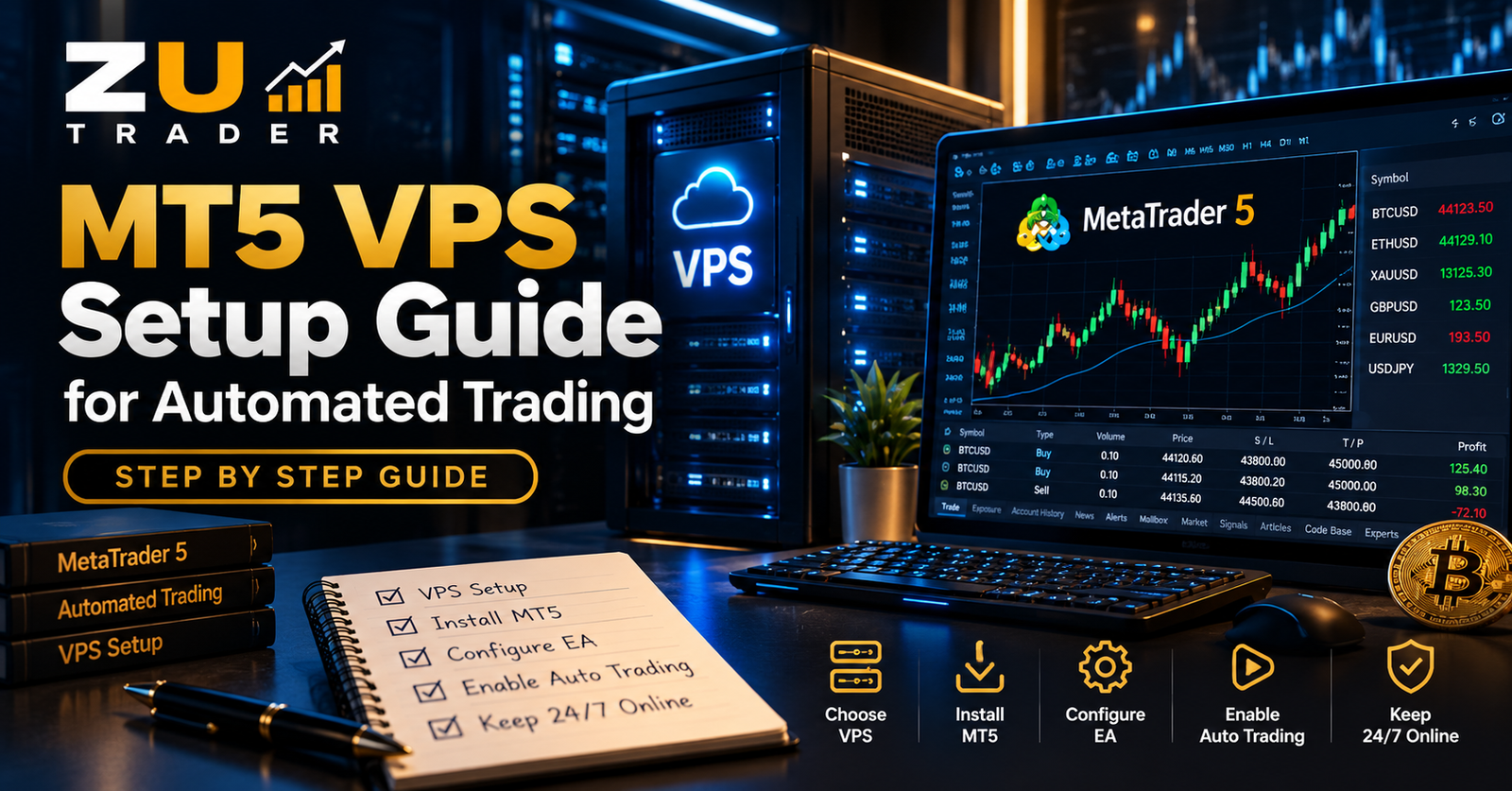
Automated trading systems work best when MetaTrader 5 remains connected and available whenever the strategy needs to monitor the market. If MT5 is running only on a personal computer, shutdowns, internet interruptions, Windows updates, or power failures can interrupt an Expert Advisor.
A Virtual Private Server (VPS) provides a remote environment where MetaTrader 5 can remain online independently of your personal computer.
This guide explains what an MT5 VPS is, when it can be useful, what to consider when choosing one, and the general process for running an Expert Advisor in a VPS environment.
What Is an MT5 VPS?
A Virtual Private Server is a remote computer hosted in a data center.
Instead of running MetaTrader 5 exclusively on your home or office computer, you can install MT5 on the remote server and access it through a remote connection.
Once properly configured, the VPS can continue running even when your personal computer is switched off.
For automated trading, this can provide a more consistent environment for Expert Advisors that need continuous access to MetaTrader 5.
Why Use a VPS for Automated Trading?
An Expert Advisor can only operate while its trading environment is available.
If MT5 closes or loses its connection, the EA may temporarily stop monitoring market conditions or managing trades.
A VPS can help reduce dependence on a personal computer.
Common reasons traders use a VPS include:
- Keeping MT5 available continuously
- Reducing interruptions caused by local power failures
- Avoiding dependence on a home internet connection
- Running Expert Advisors remotely
- Accessing MT5 from different locations
- Maintaining a dedicated environment for automated trading
A VPS does not make a trading strategy more profitable. Its purpose is to provide infrastructure for keeping the trading platform available.
When Is a VPS Useful?
A VPS can be particularly useful when an automated strategy is intended to monitor markets for extended periods.
For example, an Expert Advisor may need to:
- Monitor price movements
- Detect predefined trading conditions
- Manage existing positions
- Apply trade-management rules
- Update stop-loss or take-profit conditions
- Respond to changing market conditions
If the computer running MT5 is unavailable during these periods, the automated system may not be able to perform its programmed actions.
Step 1: Choose an Appropriate VPS
There are many VPS providers, but the cheapest option is not always the most suitable.
When comparing VPS services for MetaTrader 5, consider several factors.
Reliability
Look for a provider designed for continuous server operation with a strong uptime record.
No service can guarantee that interruptions will never occur, but reliability is an important consideration for continuously running applications.
Operating System
Make sure the VPS operating system is compatible with the software you plan to run.
Many MT5 users choose a Windows-based VPS because MetaTrader 5 can be installed and operated in a familiar desktop environment.
System Resources
The required resources depend on how many MT5 terminals, charts, indicators, and Expert Advisors you intend to run.
Important resources include:
- CPU
- RAM
- Storage
- Network connectivity
Running multiple terminals or resource-intensive software may require more capacity.
Server Location
Network latency is the delay between your trading platform and other network services.
Depending on the broker and trading setup, selecting an appropriate VPS location may help provide a stable connection.
However, extremely low latency by itself does not guarantee better trading results.
Step 2: Connect to the VPS
After creating a VPS, the provider normally supplies connection information.
For a Windows VPS, access is commonly provided through Remote Desktop.
Once connected, the remote desktop behaves similarly to another Windows computer.
You can then install the software required for your automated trading environment.
Keep VPS credentials secure and avoid sharing administrative access unnecessarily.
Step 3: Install MetaTrader 5
Install the appropriate MetaTrader 5 terminal on the VPS.
When possible, use the MT5 installation provided or recommended by the broker whose trading account will be used.
After installation:
- Launch MetaTrader 5.
- Log in to the appropriate trading account.
- Confirm the correct broker server.
- Check that market data is updating.
- Verify that the required trading instruments are available.
If you plan to automate Bitcoin trading, confirm that the broker's Bitcoin instrument is visible in Market Watch.
Step 4: Install the Expert Advisor
The next step is installing the MT5 Expert Advisor.
Follow the installation instructions provided with the EA.
The exact process can vary depending on how the software is distributed and licensed.
After installation, confirm that the Expert Advisor appears correctly inside MetaTrader 5.
Avoid downloading Expert Advisors from unknown or untrusted sources, particularly when they request unusual permissions.
Step 5: Open the Correct Trading Chart
Open the instrument required by the automated strategy.
For a Bitcoin trading EA, this may be a BTC-related instrument offered by the broker.
Symbol names can vary.
Examples might include variations of:
- BTCUSD
- BTCUSDm
- BTCUSD.
- Other broker-specific Bitcoin symbols
The exact instrument should be confirmed with the broker and the requirements of the Expert Advisor.
Also select the timeframe required by the strategy.
Step 6: Configure the Expert Advisor
Attach the Expert Advisor to the appropriate chart and review its settings.
Depending on the EA, available settings may include:
- Position size
- Risk configuration
- Trading mode
- Maximum positions
- Stop-loss behavior
- Take-profit behavior
- Drawdown controls
- Strategy settings
- Trading sessions
Do not assume the default configuration is suitable for every account or trading environment.
Understand the available settings before enabling automated operation.
For a detailed discussion of these considerations, read our Bitcoin Trading Bot Risk Management Guide.
Step 7: Enable Automated Trading
Once the EA is installed and configured, make sure automated or algorithmic trading is enabled where required in MetaTrader 5.
Check that:
- MT5 is connected
- The correct trading account is logged in
- The correct chart is open
- The EA is attached
- Required permissions are enabled
- No visible platform error is preventing operation
The exact indicators showing that an EA is active can vary with the MT5 version and EA implementation.
Step 8: Verify the Setup
Do not assume that installation alone means everything is working correctly.
Observe the platform after configuration.
Check:
- Connection status
- EA status
- Journal messages
- Expert messages
- Market data
- Account information
- Open positions
- Any EA-specific status display
If the Expert Advisor provides a dashboard or status panel, verify that it shows the expected account and configuration.
Step 9: Test Before Relying on Continuous Operation
A newly configured VPS environment should be observed before being relied upon for extended operation.
A demo account can be useful for checking the technical setup.
For example, verify that:
- MT5 remains running
- The EA remains attached
- The connection stays active
- The VPS remains accessible
- The strategy receives market data
- Configuration remains intact after reconnecting
Testing helps identify technical problems before they become more important.
If you are new to automated MT5 trading, read our complete guide on How to Automate Bitcoin Trading on MT5.
Can You Close Your Personal Computer?
If MetaTrader 5 and the Expert Advisor are running independently on the VPS, your personal computer generally does not need to remain switched on merely to keep that VPS session operating.
Closing a Remote Desktop window normally disconnects your view of the server rather than shutting down the VPS itself.
However, do not intentionally shut down the VPS or close the MT5 terminal if the system is intended to remain operational.
Does MT5 Need to Stay Open on the VPS?
For a locally running Expert Advisor, MetaTrader 5 normally needs to remain running for that EA to continue operating.
Closing the MT5 application can stop the EA from performing its programmed tasks until the terminal is opened again and the trading environment is restored.
This is one reason VPS environments are commonly used for automated trading.
How Often Should You Check the VPS?
A VPS reduces the need to keep a personal computer online, but it should not be treated as something that never needs checking.
Periodically verify:
- VPS availability
- MT5 connection
- EA status
- Account activity
- Open positions
- Available server resources
- Software status
Automated trading still requires appropriate supervision.
VPS Security Basics
Because a VPS can contain access to trading software and account information, security is important.
Consider basic practices such as:
- Using a strong, unique password
- Keeping credentials private
- Installing software only from trusted sources
- Applying appropriate operating-system security updates
- Restricting unnecessary remote access
- Avoiding unknown scripts or applications
- Keeping backups of important configuration information
Never publicly expose account passwords, license credentials, private keys, or other sensitive information.
Common MT5 VPS Problems
Even a correctly configured VPS can occasionally experience issues.
MT5 Is Not Connected
Check the internet connection, broker server, and trading-account login.
Expert Advisor Is Not Running
Confirm that the EA is attached to the correct chart and that algorithmic trading permissions are enabled.
Incorrect Bitcoin Symbol
Broker symbol names can differ. Verify the instrument required by the EA.
High Resource Usage
Running multiple MT5 terminals, charts, indicators, or EAs can consume significant CPU and memory.
If the server regularly reaches its resource limits, the VPS may require additional capacity.
VPS Restart
After a server restart, confirm that MetaTrader 5 and the Expert Advisor have returned to the expected operating state.
Do not assume every application will automatically restart unless that behavior has been deliberately configured and verified.
VPS vs Personal Computer for MT5
Both environments can run MetaTrader 5, but they serve different needs.
A personal computer may be sufficient for testing, learning, or strategies that do not require continuous operation.
A VPS becomes more useful when:
- The EA needs extended availability
- The personal computer cannot remain online
- Local internet reliability is inconsistent
- Multiple MT5 environments need to run
- Remote access is useful
The best choice depends on the requirements of the trading system.
Using a VPS With BTC Harvester
BTC Harvester is ZU Trader's automated Bitcoin trading system for MetaTrader 5.
A compatible VPS can provide an environment where MT5 and BTC Harvester remain available without depending on a personal computer being continuously online.
Before running any automated system, confirm the correct trading account, Bitcoin instrument, EA configuration, risk settings, and platform status.
You can explore the software, available licensing options, and product information on the BTC Harvester – Automated Bitcoin Trading Bot for MT5 page.
MT5 VPS Setup Checklist
Before considering the setup complete, check the following:
- VPS is active and accessible.
- MetaTrader 5 is installed.
- Correct trading account is connected.
- Correct broker server is selected.
- Required trading instrument is available.
- Expert Advisor is installed.
- Correct chart and timeframe are open.
- EA settings have been reviewed.
- Automated trading is enabled where required.
- MT5 remains connected after disconnecting from Remote Desktop.
- VPS and MT5 are periodically monitored.
Final Thoughts
A VPS can provide a stable remote environment for MetaTrader 5 and automated trading software.
Its main benefit is availability: MT5 can remain operational without depending entirely on a personal computer, home internet connection, or local power.
However, a VPS does not eliminate trading risk and does not improve the underlying logic of an Expert Advisor.
A reliable automated trading setup combines appropriate infrastructure with careful configuration, risk management, testing, and ongoing monitoring.
For users interested in Bitcoin automation on MetaTrader 5, our BTC Harvester page provides additional information about ZU Trader's automated Bitcoin trading system.
Automated trading involves financial risk. Historical tests, automated systems, and Expert Advisors cannot guarantee future trading results.
Related Articles

How Expert Advisors Work on MetaTrader 5: A Complete Guide
Learn how Expert Advisors work on MetaTrader 5, how EAs analyze market conditions and manage trades, and what to consider when testing and running automated trading systems.

Complete Guide to Automated Trading on MT5: Expert Advisors, Risk Management, Backtesting & VPS
A complete guide to automated trading on MetaTrader 5, covering Expert Advisors, Gold and Bitcoin automation, risk management, backtesting, EA settings, VPS hosting, and system monitoring.

Gold vs Bitcoin Automated Trading on MT5: Key Differences Explained
Compare automated Gold and Bitcoin trading on MetaTrader 5, including XAUUSD vs BTCUSD market behavior, trading hours, volatility, EA configuration, risk management, and testing.